
If you have ever cleaned out your purse, bag, or jacket and found an avalanche of business cards, you are aware of the problem. The baseline number to confirm this is that 88 percent of business cards that are provided will be thrown away within the first week after being given to someone. This means that in general, the majority of contacts you create through exchanging business cards will not be available to you after being put in someone’s pocket. By learning how to digitize business cards, you have the quickest way to guarantee that your contacts will make up the 12 percent of contacts saved in a digital format and not the 88 percent that will go in the trash.
Digitizing business cards by scanning them with an app on your mobile device or with a scanner that uses optical character recognition (OCR) technology to digitize printed text and save as digital contacts to your mobile phone, CRM, or cloud-based address book is a simple process that generally takes less than 10 seconds for each card, once your app is set up. Additionally, there are several companies like BizCatchup providing platforms that specialize in digital business card services combined with AI card scanning and CRM synchronization that will allow you to capture and store new contact information in a way that will allow you to easily locate, share, and follow up with several months after you have an exchange with the person.
This guide reflects the current generation of business card scanning apps, OCR accuracy standards, and CRM integrations available on iOS and Android.
What Does It Mean to Digitize Business Cards?
Business card digitization is the process of taking a hard-copy business card (i.e. printed on paper), converting it to a digital file that is most commonly stored as a contact in your phone (or other device), and provides key contact details that include name, title, company, phone number, email address, and street address.
When you have digitized a batch of business cards, rather than having a large stack of printed cards, you will have an easily searchable, shareable, and backed-up database of all of the contacts that you have previously met. This is important to your organization because poor quality data costs businesses an average of $12.9 million per year, according to IBM; therefore accurate digitized contact information is more than just convenient; it is critical to your organization.
The technology that is used to convert business cards to digital files is known as OCR (optical character recognition); when you take a picture or scan the card(s) using a scanning program/app (mobile or desktop), the OCR software will analyze the images (files) that you took and decode the contents of the image(s) by identifying the characters on the business card and mapping the characters to the correct fields in the contact (i.e. name, title, company, phone number, email address, and website).
Many of the current scanning programs/apps combine OCR with artificial intelligence technologies that can identify the layout of the business card, logos, and even multiple languages. As a result of this advancement in technology, the accuracy rate for scanning standard business cards in well-lit environments is typically over 95%.
Having an understanding of how to digitize a business card using these technologies will provide you with a basic understanding of how to scan a business card (one or a million).
Why Should You Digitize Your Business Cards?
Before diving into the how-to steps, it’s worth understanding why this small habit change delivers a disproportionately large return for professionals and small business owners.
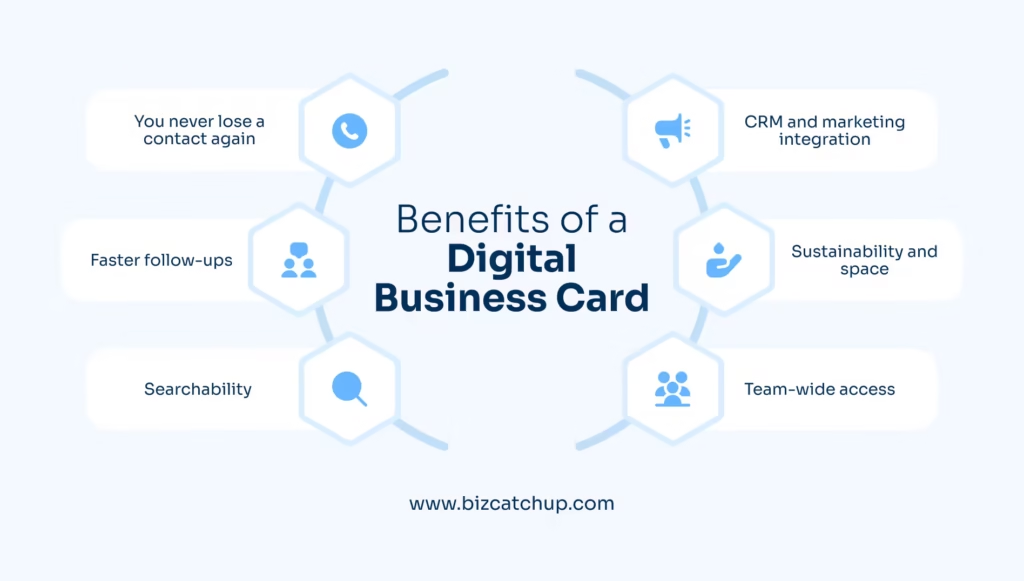
You never lose a contact again – Paper cards get thrown out, left in old bags, or damaged by coffee spills. A digital contact synced to the cloud survives all of that.
Faster follow-ups – A digitized card can be turned into a calendar reminder, an email draft, or a CRM lead within seconds of a networking event ending, while the conversation is still fresh.
Searchability – Try finding “that guy from the logistics conference in March” in a shoebox of 400 cards. Now try searching your phone for “logistics”; the second option wins every time.
CRM and marketing integration – Once you convert business cards to digital contacts, that data can flow directly into your CRM, email marketing platform, or sales pipeline, saving hours of manual data entry.
Sustainability and space – Fewer physical cards means less printing, less storage, and a cleaner desk.
Team-wide access – Digitized contacts can be shared across a sales team instantly, whereas a physical card only helps the one person holding it.
What Are the Best Methods to Digitize Business Cards?
There are four main approaches, ranging from fully automated to fully manual. Most people combine two of these depending on volume and accuracy needs, but if you want to skip the trial and error, jump ahead to the BizCatchup section below, where a single app download replaces the rest of this list.
Method 1: Smartphone Business Card Scanner Apps
This is the most popular method in 2026 because nearly everyone already carries the only tool required, their phone. A business card scanner app uses your camera and built-in OCR to capture and convert a card in a single tap, effectively how you convert business cards to digital contacts without typing a single field yourself. Leading apps also let you export contacts directly into Google Contacts, Outlook, Salesforce, or HubSpot. BizCatchup is a good example of this category; it scans both sides of a card with AI, auto-tags the contact, and syncs it straight into your CRM without any manual upload.
Method 2: Dedicated Business Card Scanners
Dedicated hardware scanners (desktop or portable) are built specifically for card-sized documents. They tend to offer faster batch processing and slightly higher accuracy for glossy, dark, or heavily designed cards, making them a good fit for reception desks, trade show booths, or offices that process high card volumes daily.
Method 3: Google Contacts, Outlook, and CRM Import Tools
Many CRMs (HubSpot, Salesforce, Zoho) and contact platforms (Google Contacts, Microsoft Outlook) now include built-in card-scanning features or accept bulk CSV imports generated by a scanning app. This method is ideal if your end goal isn’t just “a contact on my phone” but a fully synced lead inside your sales pipeline.
Method 4: Manual Entry
The oldest method still works: type the details in yourself. It’s slower and more error-prone, but it’s a reasonable fallback for a handful of cards, damaged cards that OCR can’t read, or handwritten cards where automated scanning fails.
How to Digitize Business Cards the Easy Way: Let BizCatchup Do the Work
The services I’ve described all require some degree of manual labor (i.e., coordinating between an OCR app and a CRM with an export step between, exporting to CSV, or entering manually) whereas BizCatchup revolutionizes this with a completely automated experience. Instead of using multiple applications for OCR, export, and then importing to CRM; you simply use BizCatchup which does all three (i.e., scans the document, tags the contact, enriches the contact, and syncs the contact) with one app and no added labor on your part.
In this manner you replace your manual process and essentially have a complete automated solution. Instead of being responsible for exporting files, creating CSV files, entering the information into your CRM; you have a solution (BizCatchup) that will handle all of that for you the second you scan a document. No exporting to separate CSV’s, no reformatting of CSV’s, and no need to copy and paste into another application.
What Happens When You Download BizCatchup
Here’s exactly what the process looks like once the app is on your phone:
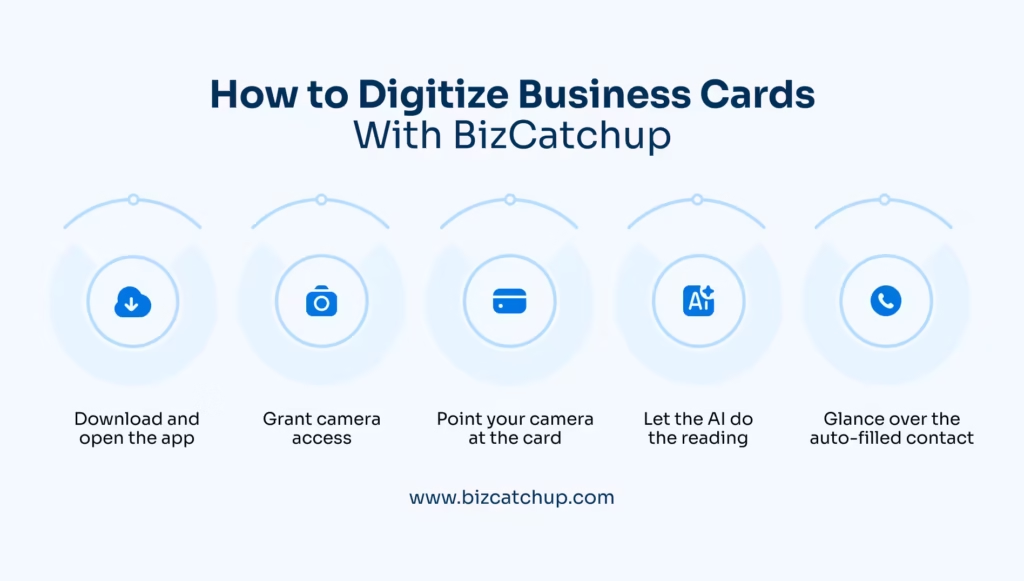
- Download and open the app. Get BizCatchup on the App Store or Google Play and create a free account; setup takes about a minute.
- Grant camera access. BizCatchup asks for camera permission once, so it can scan cards the moment you open the app; no repeated prompts.
- Point your camera at the card (or a stack of cards). Tap the scan button and hold the card, or several cards laid out together, in frame. BizCatchup’s AI detects each card automatically.
- Let the AI do the reading. BizCatchup scans both sides, runs OCR and AI recognition on names, titles, companies, phone numbers, and emails, and splits multi-card photos into individual contacts, all without you touching a keyboard.
- Glance over the auto-filled contact. The extracted fields appear on-screen for a quick check; correcting an occasional typo takes a few seconds, but there’s no manual data entry to do.
- That’s it, BizCatchup handles the rest. The contact is automatically tagged, enriched with business intelligence, and synced to your CRM (HubSpot, Salesforce, or your own database) in the background. You don’t need to export anything, open a second app, or remember to sync later.
Compare that to a manual process: sorting cards, typing each field by hand, opening your CRM separately, and uploading a CSV. With BizCatchup, downloading the app and scanning is effectively the entire workflow; everything after that first tap happens automatically.
Instant AI card scanning – Point your camera at a stack of cards, and BizCatchup’s AI scans multiple cards at once, reading both sides and converting them into structured digital contacts in seconds.
Smart contact management – Every scanned contact is automatically tagged and enriched with AI-driven business intelligence, so you can search, filter, and segment your network without manual data entry.
One-tap CRM sync – Scanned contacts flow directly into CRMs like HubSpot or Salesforce, so a card you scan at a conference can become a tracked lead before you’ve even left the venue.
Digital business cards and QR exchange – Beyond scanning other people’s cards, BizCatchup lets you create your own shareable digital card with a QR code or link, useful if you want to hand out a card and receive one in the same tap.
Secure export and backup – Your full contact list can be downloaded as Excel or CSV at any time, so your digitized network is never locked into a single app.
Team and analytics dashboard – Event and operations teams can manage shared cards, control access, and track card activity from a single dashboard, handy for businesses digitizing cards on behalf of a whole team.
Whether you’re a relationship-focused salesperson, an independent consultant, or an operations team managing contacts for a whole event, BizCatchup’s Built For pages walk through which setup fits your role best, and the How It Works page and Pricing plans (both open in a new tab) go into more detail on how the automation works behind the scenes.
How to Digitize Business Cards on iPhone (Step-by-Step)
iPhone users have several native and third-party options for how to digitize business cards on iPhone. Here’s the most reliable workflow:
- Open your camera or a scanner app. Apple’s Notes app has a built-in document scanner (Notes → New Note → Camera icon → Scan Documents) that captures a clean, cropped image of the card.
- Download a dedicated OCR-based scanner app if you want automatic contact creation rather than just an image. Search the App Store for a business card scanner app and choose one with strong reviews and CRM export support, or simply download BizCatchup on the App Store, which is built specifically for AI-powered card scanning and takes just a minute to set up.
- Position the card on a flat, well-lit, contrasting surface. Avoid shadows and glare; these are the biggest causes of OCR misreads.
- Capture the front (and back, if it has additional details). Most apps auto-detect the card edges and snap the photo automatically once it’s in focus. BizCatchup can even scan several cards laid out together in one photo and split them into individual contacts.
- Review the extracted fields. The app will populate name, title, company, phone, and email. Correct any OCR errors before saving; this typically takes 5–10 seconds.
- Save to Contacts or export to your CRM. Choose “Add to Contacts” for personal use, or select your CRM integration (Salesforce, HubSpot, Zoho) if you’re capturing sales leads. With BizCatchup, this sync happens automatically the moment a card is scanned, no manual export step required.
- Tag or group the contact. Add a label like “2026 Networking Event” or a specific tag so you can filter and follow up later.
How to Digitize Business Cards on Android (Step-by-Step)
The Android workflow is nearly identical, with a couple of platform-specific options:
- Use Google Lens for a quick one-off scan. Open Google Lens, point it at the card, and tap the contact information that appears. Android will offer to save it directly to Google Contacts.
- Install a dedicated business card scanner app from the Google Play Store for higher accuracy and batch scanning, especially if you’re digitizing more than a handful of cards. BizCatchup is available on the Google Play Store and adds AI-powered auto-tagging and CRM sync on top of basic OCR scanning.
- Enable camera and contacts permissions so the app can save directly without manual copy-paste.
- Scan the card in good lighting, holding the phone parallel to the card to avoid distortion.
- Verify and edit the auto-filled fields, paying special attention to phone number formatting and email spelling, which are the two fields most often misread by OCR.
- Sync to Google Contacts or your CRM so the record is backed up and accessible from any device signed into your account. BizCatchup handles this sync automatically, so there’s no separate export step.
- Set a follow-up reminder directly in the app or your calendar so the new contact doesn’t go cold.
What Are the Best Apps to Digitize Business Cards in 2026?
While specific app rankings shift over time, the strongest business card scanner apps in 2026 share these characteristics: high OCR accuracy across multiple languages, direct CRM export, cloud backup, duplicate-contact detection, and offline scanning support for events with poor connectivity. When evaluating a business card scanner app, prioritize:
- OCR accuracy on real-world cards; test it on a card with a busy logo or unusual font before committing to a paid plan.
- Export compatibility with the CRM or contact platform your team already uses (CSV, vCard, direct API sync).
- Batch scanning speed if you regularly digitize dozens of cards after a conference.
- Data privacy practices, since business cards contain personal contact details; check how the app stores and encrypts your data before granting camera and contacts access.
- Team-sharing features if multiple salespeople need access to the same digitized leads.
- Multi-language support if you attend international conferences or work with overseas suppliers, since OCR engines vary widely in how well they read non-Latin scripts and accented characters.
- How much of the process it automates for you. Apps that only convert a card into an image still leave you to manually enter the contact; apps like BizCatchup that scan, tag, and sync automatically cut that manual work out entirely.
- Free vs. paid tiers. Many apps offer a limited number of free scans per month before requiring a subscription; calculate your expected monthly volume before assuming the free tier will cover your needs.
How to Organize and Manage Digitized Business Cards
Scanning the card is only half of how to digitize business cards effectively; organization is what makes the digital version actually more useful than the paper one.
- Create uniform tags, such as Grouping Tags (e.g., Event Tag), Business Type Tag (e.g., Construction), or Lead Stage Tag (e.g., Cold lead, Follow-Up Sent, Client).
- Add context notes quickly after scanning the contact; for example, “Interested in Q3 Supply Contract” is much more beneficial a month later vs. just having a contact name and number.
- Set up follow-up reminders. Many CRMs allow you to set up automatic reminders for 24 hours, 72 hours then 168 hours after entering a contact to keep you current with networking follow-up.
- Deduplicate constantly. If you have scanned cards from the same person at different networking events, use your app’s built-in duplicate detection to merge those records, thus reducing the number of duplicates, and also check for near matches.
- Store your contact lists to the cloud, not only to your mobile phone. If your phone becomes lost, stolen or reset, the cloud will protect your contact list; this will also mean when re-signing into your new mobile device, it will have your contact list from prior installations on your new mobile device.
- Do a review and purge your contacts every quarter. Business professionals go through many changes in their careers, therefore; you should keep your digital Rolodex current by performing a quarterly review. BizCatchup’s contact intelligence auto-enriches and flags stale entries, and you can browse more networking workflow tips on the BizCatchup Blog (opens in a new tab).
How to Digitize a Large Stack of Old Business Cards
If you’re not digitizing cards one at a time after a meeting but instead facing a shoebox of hundreds of accumulated cards, learning how to digitize business cards in bulk changes the workflow slightly, and understanding how to digitize old business cards in large batches will save you hours over scanning them one by one:
- Sort first, scan second – Separate cards into “still relevant” and “outdated/duplicate” piles before you scan anything; there’s no reason to digitize a contact who no longer works at that company.
- Use batch-scan mode – Most scanner apps let you photograph a full page of cards laid out in a grid, then split and OCR each one automatically, dramatically speeding up bulk digitization. This is where an app like BizCatchup saves the most time, since it splits and syncs an entire tray of cards without any manual step in between.
- Consider a dedicated scanner or scanning service for volumes above a few hundred cards; the per-card accuracy and speed of dedicated hardware outperform handheld phone scanning at scale.
- Export in batches to CSV, then import into your CRM or Google Contacts using the platform’s bulk-import tool rather than adding contacts one by one, or skip this step entirely if you’re using an app like BizCatchup that syncs automatically.
- Spot-check a sample for accuracy after a bulk import; OCR error rates rise slightly with damaged, faded, or non-standard cards, so a 10% quality check catches most issues before they reach your CRM.
- Physically archive or shred the originals once you’ve confirmed the digital versions are backed up, depending on your company’s data retention policy.
What Are Common Mistakes to Avoid When Digitizing Business Cards?
- Skipping the review step. OCR is good, not perfect. Always glance over the auto-filled fields, especially phone numbers and email addresses, before saving.
- Poor lighting or shadows during scanning, which is the single biggest cause of misread text.
- Not adding context notes, so six months later you have a name and number but no memory of why it matters.
- Ignoring duplicate contacts, which clutters your CRM and can lead to embarrassing double outreach to the same lead.
- Relying on a single device with no cloud backup, risking total data loss if the phone is lost or damaged.
- Overlooking data privacy and consent, particularly when digitizing contacts into a shared company CRM; make sure your data handling complies with relevant privacy regulations in your region.
- Forgetting to scan the back of the card, which sometimes carries additional details like a secondary phone number, social handles, or a QR code.
- Choosing an app based only on price. A free app that misreads a meaningful share of phone numbers or emails can cost you more in missed follow-ups than a low-cost paid app with near-perfect accuracy.
- Doing manually what an app could automate. If you’re still exporting CSVs and re-uploading them to your CRM by hand, an app like BizCatchup that syncs automatically is worth the switch.
- Not standardizing formats across a team. If one salesperson tags contacts by event name and another by month, your CRM quickly becomes hard to filter; agree on a shared tagging convention before your team starts bulk digitizing.
Avoiding these pitfalls is often the real difference between a digitized contact list that gets used every week and one that quietly turns into a second, digital version of the same shoebox problem.
How Do Digitized Business Cards Fit Into a Bigger Digital Strategy?
Digitizing a card is the first step, not the destination. Once contact data is digital, it can plug into the rest of your business’s growth engine in ways a paper card never could.
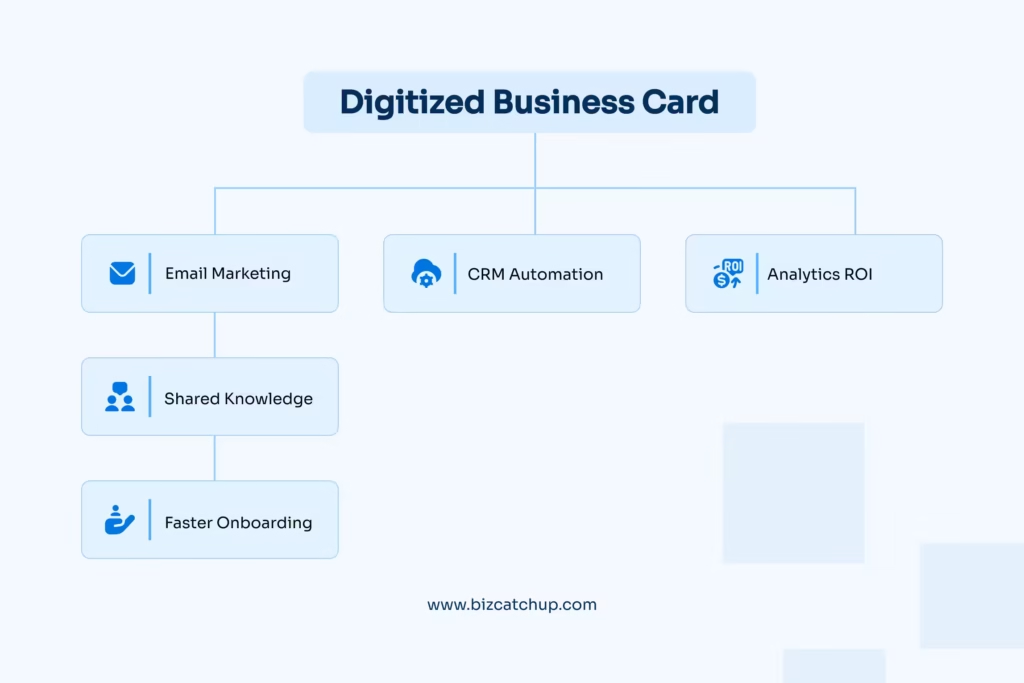
- Email marketing segmentation – Marketing segmentation targets digitally tagged contacts after the event, enabling the nurture relationship to develop from a five-second chat to an ongoing marketing relationship.
- Sales pipeline automation – CRM (sales pipeline) automation creates a new task as soon as the digital contact has been entered, including: which sales rep is assigned, follow-up call scheduled and/or marking they are a hot lead based on their industry/title taken from the business card.
- Analytics on networking ROI – Network ROI analytics allows you to measure which events/conferences produced qualified leads from digital contacts tagged by event/conference, so you can determine where to allocate your networking budget for the next year.
- Team knowledge sharing – If a salesperson leaves, a shared digital contact library provides a searchable way for everyone within the organization to see a complete history of the relationship and contact information.
- Faster onboarding for new hires – Onboarding new hires is easier by being able to search a shared digital card database instead of walking around the office and asking, “Does anyone have the supplier’s phone number?”
In short, the real value of learning how to digitize business cards isn’t just decluttering a drawer; it’s converting a one-time introduction into a durable, actionable business asset that compounds over time.
Frequently Asked Questions
1. What is the fastest way to digitize business cards?
The fastest method for most people is a business card scanner app with OCR; it takes about 5–10 seconds per card, including the review step, and saves directly to your contacts or CRM. Apps like BizCatchup go a step further by handling the tagging and CRM sync automatically, so there’s nothing left to do manually after the scan. For occasional single-card scans, built-in tools like Google Lens or Apple’s document scanner are quick enough that a separate app isn’t always necessary.
2. Is it safe to digitize business cards using a free app?
Many free apps are safe, but you should always review the app’s privacy policy before granting camera and contacts access, since business cards contain personal data. Choose apps that clearly state how contact data is stored, whether it’s encrypted, and whether any information is shared with third parties for advertising purposes.
3. Can I digitize business cards without an app?
Yes. You can manually type contact details into your phone or computer, or use a built-in document scanner (like Apple Notes) to save an image, though you’ll lose the automatic OCR-to-contact conversion that dedicated apps provide. This approach makes the most sense for a small handful of cards rather than an ongoing habit.
4. How accurate is OCR scanning for business cards?
Modern OCR-based scanner apps typically achieve 90–98% accuracy on standard, well-lit, printed cards. Accuracy drops for handwritten text, unusual fonts, low lighting, or heavily stylized logos, so a quick manual review of the auto-filled fields is still recommended before saving.
5. What should I do with the physical business cards after digitizing them?
Once you’ve confirmed the digital contact is accurate and backed up, you can recycle or shred the physical card, unless your company’s record-retention policy requires keeping originals for a set period. Keeping a small physical archive of only your most important contacts is a reasonable middle ground.
6. Can digitized business cards sync directly to a CRM like Salesforce or HubSpot?
Yes. Most modern scanning apps support direct export or API integration with major CRMs, allowing a scanned card to become a fully formed lead record, complete with tags, owner assignment, and follow-up tasks, without manual data entry. BizCatchup does this automatically the moment a card is scanned, with no separate export step.
7. How do I digitize a large batch of old business cards efficiently?
Sort the cards first to remove duplicates and outdated contacts, then use a batch-scan feature or dedicated scanner to process multiple cards at once, followed by a bulk CSV import into your contacts app or CRM. Spot-checking a sample of the imported records afterward helps catch any OCR errors before they spread through your database.
8. What’s the easiest way to digitize business cards without doing it manually?
Download BizCatchup, scan a card or a stack of cards, and let the app handle OCR, tagging, enrichment, and CRM sync in the background. It’s the closest thing to a fully automated way to digitize business cards, since there’s no manual export or data entry step for you to do afterward.
